How to install mods and add-ons in Minecraft Bedrock, step by step
Installing the add-on is the easy part. Here is the part that fails too: activating it in your world, and what to check when it never shows up.
First: what each thing actually is
Half an hour of trouble disappears once you get this, because the four names get used as synonyms and they are not:
- Resource pack: changes how the game looks and sounds. Textures, models, music. It changes no rules.
- Behavior pack: changes how things work. What a mob drops, how it attacks you, which recipes exist.
- Add-on: the name for the bundle. Almost always a behavior pack plus a resource pack meant to go together.
- Mod: technically does not exist in Bedrock. People call add-ons mods out of Java habit, but it is not the same thing: in Java a mod modifies game code, and here it does not.
That is why a Bedrock add-on cannot do everything a Java mod can — and also why it installs in two clicks instead of needing Forge.
1. The easy way: double-click
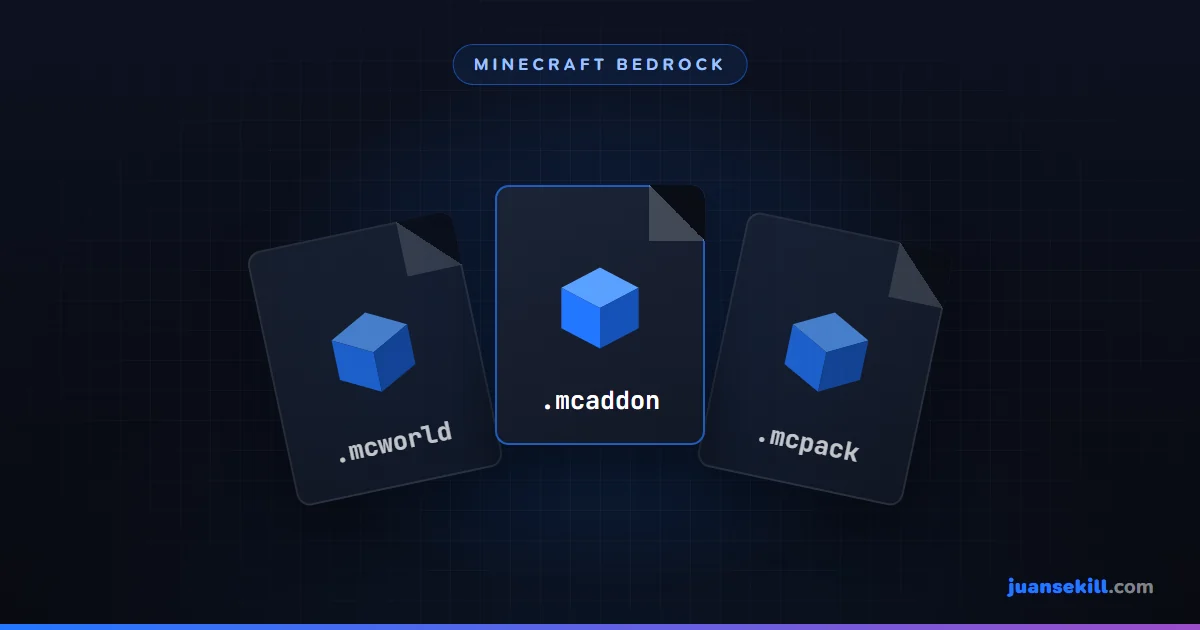
The files you will run into are .mcpack (a single pack),
.mcaddon (several bundled) and .mcworld (a whole world
with its packs inside).
- Close Minecraft completely. Not to the menu — closed.
- Double-click the file.
- Minecraft opens on its own and shows "Successfully imported".
- Done. The pack is in your library — but it is not active yet, which is where half of everyone gets stuck.
Importing is not activating. After the double-click the pack exists in your game, but it is not applied to any world. If you jump in and see nothing different, it is not broken: step 2 is missing.
2. Activating it in your world
This part has to be done for every world you want it in:
- In the world list, tap the pencil next to the world (edit).
- Scroll the left panel down to Behavior Packs or Resource Packs, depending on what you installed.
- You will see two sections: active on top and available below. Yours is under "available".
- Tap it and hit Activate.
- Save and enter the world.
If the add-on asks for experimental options
Many behavior add-ons will not run without this. On that same world edit screen there is an experiments section — the exact wording changes between versions. If the add-on asks for it, turn it on there.
And here is the warning nobody gives you in time: turning experiments on disables achievements in that world forever. Switching them back off does not undo it. If the world matters to you, test the add-on in a fresh one first.
Order matters
If you have several packs active, the one higher in the active list wins over the ones below when both touch the same thing. If you installed two add-ons and one "does nothing", try moving it up.
3. It never shows up: the four reasons
In order of how often each one is the answer:
The file is a disguised .zip
Plenty of sites hand you the add-on inside a .zip. If there is a
.mcpack or .mcaddon inside, extract and use that one. If
instead you see folders and a file called manifest.json, then the
.zip is the pack: rename it, swapping
.zip for .mcpack, and double-click.
To rename the extension, Windows has to be showing it. In File Explorer:
View tab → File name extensions. Without that
you will create a file called addon.mcpack.zip and it still will not
work.
It is for a different game version
An add-on declares the minimum engine version it was built for. If your game is older than that, it may not show up, or show up and break. The reverse happens too: a three-year-old add-on may have been left behind. Always check which version it claims to support before downloading.
The manifest is broken
Every pack carries a manifest.json that identifies it. If that file
is malformed — or if two different packs share the same identifier — the game
silently ignores one of them. If you downloaded two versions of the same add-on,
delete one.
Minecraft is not installed as a Store app
Double-click works because Windows associates those extensions with the Microsoft Store Minecraft app. If your install is a different kind, that association may not exist. Then you go manual, which is the next section.
4. The manual route, and where to back up
Installed packs live in a folder called com.mojang, and where
it is depends on your version: since 1.21.120 Bedrock stores everything
somewhere else. You get there by typing this into the File Explorer address
bar:
- Current versions (1.21.120 onwards):
%APPDATA%\Minecraft Bedrock\UsersInside there is a folder named with a long number — your account — and another calledShared. In each one, what you want is undergames\com.mojang. Your worlds go in your account folder; packs may be there or inShared: if they are not in one, they are in the other. - Older versions:
%LOCALAPPDATA%\Packages\Microsoft.MinecraftUWP_8wekyb3d8bbwe\LocalState\games\com.mojang
Inside com.mojang, four folders matter to you:
resource_packs— installed resource packs.behavior_packs— the behavior ones.minecraftWorlds— your worlds. This is the one to copy before touching anything.- The two starting with
development_are for testing packs while building them. If you are not making one, leave them alone.
To install by hand: extract the pack and drop the resulting folder — the one with
manifest.json inside it — into resource_packs or
behavior_packs as appropriate. With the game closed.
The backup, seriously. Copy the whole
minecraftWorlds folder somewhere else before applying an add-on to a
world you care about — on current versions, the safest move is copying the whole
Users folder, which holds every account's worlds. A behavior pack can change things that do not revert on
their own when you turn it off.
5. Before downloading an add-on from just anywhere
Add-ons get shared on third-party sites, and quality varies wildly. Four signals worth more than the download count:
- The file should be
.mcpack,.mcaddonor.mcworld. A Bedrock add-on is never an.exe. If you are offered an executable installer, that is not an add-on. - It should say which game version it is for. If it does not, odds are whoever uploaded it does not know either.
- The download should not pass through three link shorteners. Every hop is a chance to be handed something else.
- When in doubt, scan it. Even though a
.mcpackis just data and does not execute, checking costs you nothing.
Removing it
Deactivating it in the world is enough to stop it applying. To delete it
entirely, do it from the game itself — in the pack library — or by deleting its
folder from resource_packs / behavior_packs with the game
closed.
If the world went strange after removing a behavior add-on, that is exactly where the backup from the previous step saves you. If you did not make one: now you know for next time.
Frequently asked questions
Are Bedrock add-ons the same as Java mods?
No, and the difference matters. Java mods modify the game code and need a loader like Forge or Fabric. Bedrock add-ons use an official Mojang system: they do not touch code, they use data files the game already knows how to read. That makes them far easier to install and also more limited in what they can do.
Do add-ons disable achievements?
It depends. A texture pack alone does not. But many behavior add-ons require you to turn on the world's experimental options, and that does disable achievements in that world, permanently. If you care about them, test the add-on in a separate world.
Can I use an add-on on a world I already have?
Yes, but back it up first. A behavior pack can change how things generate or how mobs act, and if you remove it later, what already changed does not always revert. The backup takes a minute; rebuilding a world does not.
Why does double-clicking the .mcaddon do nothing?
Almost always one of three things: the file is really a .zip with a different name, the game is not installed as a Microsoft Store app, or Windows has that extension associated with another program. All three are covered below.
Do add-ons work in multiplayer?
On your own world shared over LAN or Realms, yes — the packs travel with the world. On third-party servers, no. There the server config decides, not yours.